
How to Prepare Your Logo Files for Custom Printing
The file you send decides how sharp your print looks. Here is exactly what formats we need for screen printing, DTF and embroidery, and how to fix a low-res logo before it costs you.
Here's the truth we tell every customer who walks into our Ottawa shop: the file you hand us decides how good your print looks more than almost anything else. A great press and great ink can't rescue a blurry logo dragged off Instagram. The good news is that getting a print-ready logo file is simple once you know what we're looking for — and if your art isn't there yet, it's usually a quick fix. This is exactly what we'd walk you through across the counter.
If you only remember one thing: vector files print at any size with zero blur, and a transparent-background file saves you from an ugly white box on your shirt. Everything below is the detail behind that.
Vector vs raster — the one distinction that matters
Every logo file falls into one of two camps. A raster file (JPEG, PNG, GIF, the photo from your phone) is made of pixels — a fixed grid of tiny coloured squares. Blow it up bigger than it was made and those squares get fuzzy. A vector file (AI, EPS, SVG, or a vector PDF) is built from math — points and curves — so it scales from a business card to the side of a truck with no loss of sharpness at all.
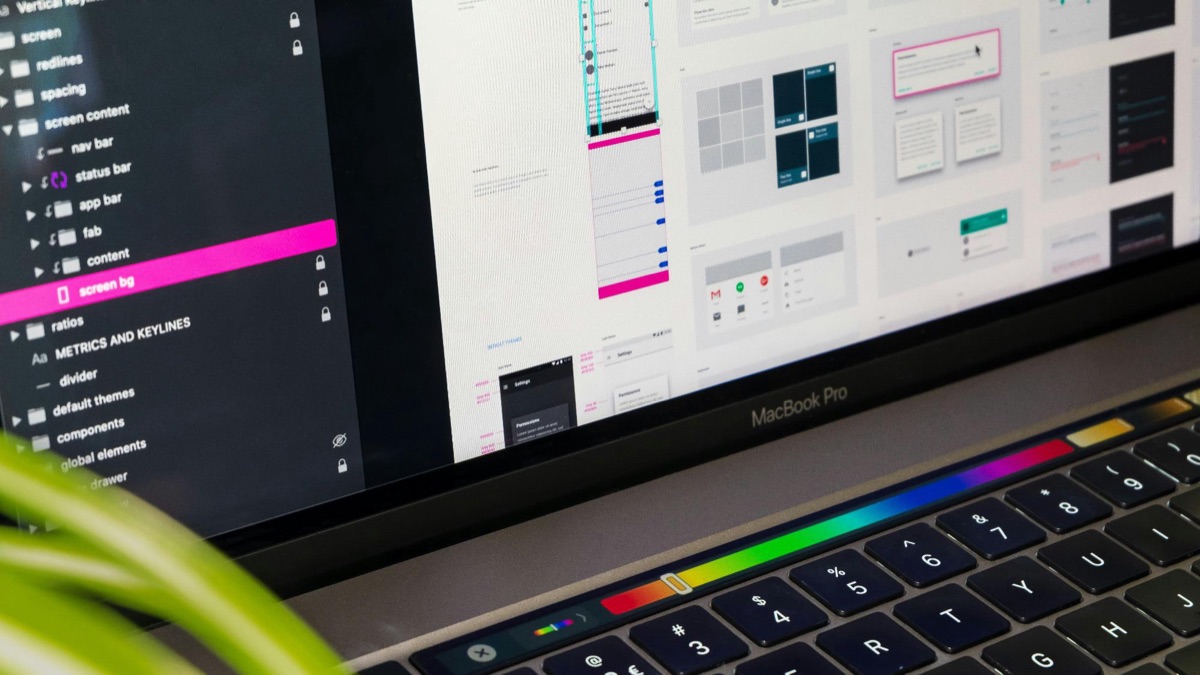
That's why a vector logo for shirts, hats, and signs is what every print shop asks for first. When you wonder what file format for printing is best, the honest answer is: a vector file if you have one, the biggest high-resolution PNG you can find if you don't. We can do a lot with a clean PNG; we can do almost nothing with a tiny 200-pixel JPEG.
What we need for each method
The ideal file changes a little depending on how we're putting your design on the product. Here's the quick version for the three things we print most.
| Method | Best file | What to watch for |
|---|---|---|
| Screen printing | Vector (AI / EPS / PDF) | Each ink colour separated; limited colour count |
| DTF / DTG | Vector or 300 DPI PNG, transparent bg | Full colour is fine; no white box behind art |
| Embroidery | Vector — clean, bold shapes | Fine text and gradients don't stitch well |
For screen printing, we burn one screen per ink colour, so vector art with cleanly separated colours is ideal — it keeps your colour count (and your price) under control. DTF printingis the most forgiving: it's a full-colour digital process, so a sharp 300 DPI PNG with a transparent background prints beautifully even with gradients and photos. Embroideryis the pickiest — thread can't reproduce a gradient or hairline text, so simple, bold vector shapes give the best stitch-out.
The resolution rule (the 300 DPI thing, explained)
When you can't get vector, resolution is everything. The shorthand is 300 DPI at the size it'll actually print. DPIon its own means nothing without a size — a logo that's 300 DPI at one inch is useless blown up to a full back print.
In real pixels: a typical left-chest logo prints around 3.5–4 inches wide, so you want a file roughly 1,000–1,200 pixels across. A standard 11-inch back print wants 3,000+ pixels.A quick gut check: open the file at 100% zoom on your screen. If it already looks bigger and sharper than you plan to print it, you're in good shape. If it's a postage stamp and the edges look soft, it's too small — and stretching it in the design just makes the blur bigger, not better.
Not sure if your logo is print-ready?
Send it over with what you want printed. We'll tell you straight whether it'll hold up, fix it if it won't, and send back a free digital mockup — usually the same day.
Get a Free MockupHow to fix a low-res logo before it costs you
Maybe all you have is the logo your cousin made in 2014, or a tiny version off your website. Don't panic — and please don't just stretch it bigger and hope. Here's the order we'd try things in:
- Hunt for the original. Ask whoever designed it for the AI, EPS, or PDF. The vector source almost always exists somewhere in an old email or a designer's files.
- Export bigger from the source. If it lives in Canva, a website builder, or design software, re-export it at the largest size with a transparent background (PNG), not whatever thumbnail you grabbed.
- Vectorize it. If the original is truly gone, rebuild it. You can run a clean logo through our free in-browser vectorizer to trace it into crisp lines yourself.
- Let us redraw it. For logos with fine detail or text, hand vectorization beats any auto-trace. We rebuild the art so it stays sharp at any size, ready for screen printing or embroidery.
The thing to avoid is uploading a blurry file, approving the mockup because it looks okay small, and then being surprised when the printed version is fuzzy. Fixing the file first is always cheaper than reprinting a botched run.
Five quick file mistakes we see every week
- The white box. A JPEG (or a PNG saved without transparency) carries a white background that prints as a visible rectangle on a coloured shirt. Send transparent or vector.
- Screenshots. A screenshot of your logo is always lower resolution than the real file. It's the single most common low-res culprit we get.
- RGB neon that can't be matched. Bright screen colours (especially neon) don't always have an ink equivalent. We'll get as close as the process allows and flag it on the mockup.
- Fonts that aren't outlined. In a vector file, text needs to be converted to outlines/curves, or it can reflow to a different font on our end.
- Tiny details on a small print. A logo with hairline text looks fine on a billboard but fills in and muddies at left-chest size. Simpler reads better small.
The easiest path: design it in our tool
If all of this feels like a lot, you can skip most of it. Our online mockup creatorlets you upload your art, place it on the product, and see exactly how it'll look before you pay a cent — and it quietly flags when an uploaded file is too small to print well. Drop in your best file, and if it's not quite right, we'll catch it and fix it before anything hits the press.
And if you'd rather just hand it to a human, that's what we're here for. We're a real shop printing in-house in Ottawa, serving Kanata, Barrhaven, Nepean, Orléans, Gloucester, Stittsville, the Glebe, Hintonburg, Westboro, Manotick, and Gatineau — with same-day quotes, no minimums on DTF, and free local pickup and delivery across the National Capital Region. Send the file you've got. We'll prepare your artwork for printing and tell you the truth about it.
Frequently asked questions
What file format is best for printing a logo?
A vector file — .ai, .eps, .pdf, or .svg — is the gold standard, because it scales to any size with zero blur. If you can't get vector, send the largest, highest-resolution PNG you have, ideally with a transparent background. We can usually rebuild a logo from a clean PNG; we just need it as big as possible.
Can you print straight from a JPEG?
Sometimes, but JPEGs are risky. They compress the image, which adds fuzzy artifacts around edges and text, and they bake in a white background that shows up as a box on your shirt. A JPEG pulled off a website is almost always too low-resolution to print cleanly. Send a PNG or vector if you possibly can — or send the JPEG and we'll tell you honestly whether it'll hold up.
What resolution does my logo need to be for printing?
Aim for 300 DPI at the actual print size. A standard left-chest logo is about 3.5–4 inches wide, so you want a raster file roughly 1,000–1,200 pixels across. A full back print at 11 inches wants 3,000+ pixels. If your file looks sharp on screen at 100% zoom and bigger than your intended print, you're usually fine.
How do I turn my low-resolution logo into a vector?
You can run it through our free in-browser vectorizer, which traces the shapes into clean lines, or send it to us and we'll handle the vectorization by hand. Hand vectorizing is best for logos with fine detail or text, because it rebuilds the art so it stays crisp at any size — exactly what screen printing and embroidery need.
Why does the printer keep asking for a transparent background?
Because a white (or coloured) background isn't invisible — it prints. If your logo sits on a white box and we put it on a navy shirt, you'll see that box. A transparent PNG or a vector file lets the garment colour show through around your design, which is what you almost always want.
Send us your logo — we'll get it print-ready
Upload your best file and we'll send back a free digital mockup, fix any resolution or background issues, and quote it — usually the same day. No minimums, printed in Ottawa.
Start My Free Mockup